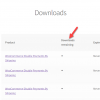
By default, the “Downloads” section in the WooCommerce My Account area is sorted by date — and that’s the only option. There’s no built-in way for customers to sort downloads by name, expiry, or remaining counts, which can be inconvenient when managing many files.
This snippet adds a custom dropdown above the table, letting users choose how they want to sort their downloads — alphabetically or in reverse — for any of the visible columns. It uses native WooCommerce hooks and a bit of jQuery, with no need to override templates.
Here’s how it works!

PHP Snippet: Add a Sorting Dropdown to the WooCommerce Downloads Table
This code adds a sorting dropdown above the WooCommerce downloads table on the My Account page. It dynamically generates sorting options based on all available columns in the downloads table, offering both ascending and descending choices for each column.
When the user selects an option, a jQuery script captures the choice and sorts the table rows accordingly, without needing a page reload. The sorting works by comparing the text content of the relevant table cells for each row.
This approach leverages WooCommerce’s existing hooks and JavaScript enqueue method to enhance the user experience with minimal code and no template overrides:
/**
 * @snippet       Sort WooCommerce Downloads @ My Account
 * @tutorial      https://fa8faab2-7736-467b-aa28-860b32869022.express.conves.io/woocommerce-customization
 * @author        Rodolfo Melogli, Business Bloomer
 * @compatible    WooCommerce 10
 * @community     https://fa8faab2-7736-467b-aa28-860b32869022.express.conves.io/club/
 */

add_action( 'woocommerce_before_available_downloads', 'bbloomer_sort_downloads_my_account' );

function bbloomer_sort_downloads_my_account() {
   echo '<p><select id="downloads-sorting">';
	echo '<option value="">Sort by <strong>date</strong> (default)</option>';
	foreach ( wc_get_account_downloads_columns() as $column_id => $column_name ) {
        echo '<option value="' . $column_id . '_asc">Sort by <strong>' . $column_name . '</strong> (A->Z)</option>';
		echo '<option value="' . $column_id . '_des">Sort by <strong>' . $column_name . '</strong> (Z->A)</option>';
	}
	echo '</select></p>';
	wc_enqueue_js( "
		let table = $('.woocommerce-table--order-downloads tbody');
		let dropdown = $('#downloads-sorting');
		dropdown.on('change', function () {
			let rows = table.find('tr').get();
			let selected = dropdown.val().split('_');
            let columnClass = selected[0];
            let order = selected[1];
			rows.sort(function (a, b) {
				let textA = $(a).find('.' + columnClass).text().trim();
                let textB = $(b).find('.' + columnClass).text().trim();
                return order === 'asc' ? textA.localeCompare(textB) : textB.localeCompare(textA);
			});
			$.each(rows, function (index, row) {
				table.append(row);
			});
		});
	" );
}