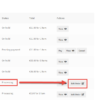
By default, WooCommerce keeps the “Orders” screen buried under its own top-level “WooCommerce” main menu item, alongside settings and other options. While this makes sense for a tidy admin sidebar, many store managers live inside the Orders page and would benefit from quicker access. Clicking twice every single time you want to check orders can become a small but constant annoyance.
What if “Orders” had its own dedicated spot in the WordPress admin menu? That way, you’d have the most important screen only one click away, and in a much more prominent place.
The good news is you don’t need heavy customization. With a few lines of PHP you can move the Orders link out of the WooCommerce submenu and place it where it belongs — directly below WooCommerce, after Products, and before Payments, Analytics and Marketing.
Also, you can check the free plugin below, where you can set the position dynamically, based on your preferences. But for now, here’s the snippet you can copy into your site.
PHP Snippet: Move “Orders” Menu Item Under “Products” @ WordPress Admin Sidebar

This snippet modifies the WordPress admin menu so that the WooCommerce “Orders” page is promoted from a submenu item to a dedicated top-level menu entry.
It first checks whether WooCommerce is active. Next, it locates the Orders link inside the WooCommerce submenu and removes it from there.
Finally, it uses add_menu_page() to re-create Orders as a top-level menu item with the cart dashicon. By assigning position 55.5, it ensures “Orders” appears immediately below “Products” and just above Payments, Analytics, and Marketing.
This approach keeps the admin menu clean, improves usability for store managers who frequently access Orders, and avoids any jQuery hacks by relying entirely on PHP hooks within the WordPress menu system.
/**
 * @snippet       Move Orders Menu Item @ WordPress Dashboard
 * @tutorial      https://fa8faab2-7736-467b-aa28-860b32869022.express.conves.io/woocommerce-customization
 * @author        Rodolfo Melogli, Business Bloomer
 * @compatible    WooCommerce 10
 * @community     https://fa8faab2-7736-467b-aa28-860b32869022.express.conves.io/club/
 */

add_action( 'admin_menu', 'bbloomer_move_orders_menu_item', 9999 );

function bbloomer_move_orders_menu_item() {

	global $menu, $submenu;

    if ( ! isset( $submenu['woocommerce'] ) ) {
        return;
    }

    // REMOVE "ORDERS" SUBMENU ITEM
    $orders = null;
    foreach ( $submenu['woocommerce'] as $key => $item ) {
        if ( isset( $item[2] ) && in_array( $item[2], [ 'edit.php?post_type=shop_order', 'wc-orders' ] ) ) {
            $orders = $item;
            unset( $submenu['woocommerce'][$key] );
            break;
        }
    }

    if ( ! $orders ) return;

    // ADD "ORDERS" BELOW "WOOCOMMERCE"
    add_menu_page(
        $orders[0],
        $orders[0],
        $orders[1],
        $orders[2],
        '',
        'dashicons-cart',
        55.5
    );

}
Free Mini-Plugin: Business Bloomer WooCommerce Move “Orders” Menu Item
You don’t feel confident with coding? You don’t want to purchase yet another bloated, expensive plugin? Great!
Business Bloomer WooCommerce Move “Orders” Menu Item is a mini WooCommerce plugin, without the usual hassles. One feature. Lifetime license. No annoying subscriptions. 1 plugin file. A few lines of code. No banners. No up-sells. No WP notifications. Use it on as many websites as you like. Lifetime support. 1-page documentation. Simple settings.
Settings screenshot:

Use the settings to choose where to move the ‘Orders’ item—after a parent or child sidebar menu item. In the screenshot above, I decided to move “Orders” right after “Posts”. Simple!