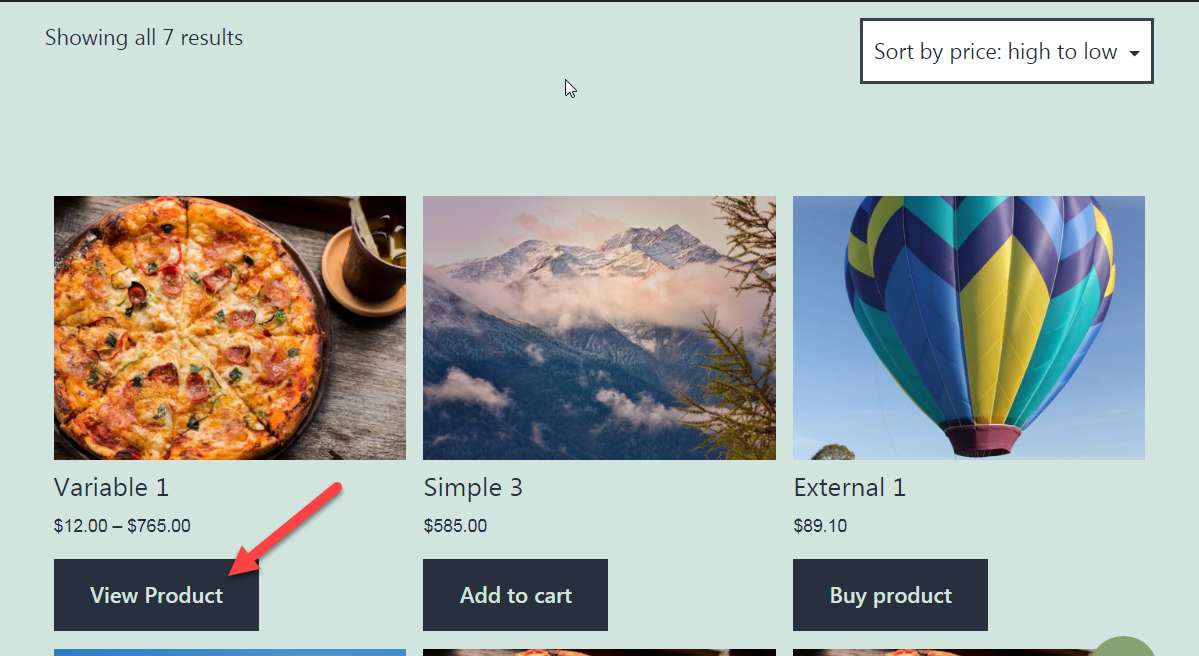
WooCommerce: Rename “Select Options” Button @ Shop Page

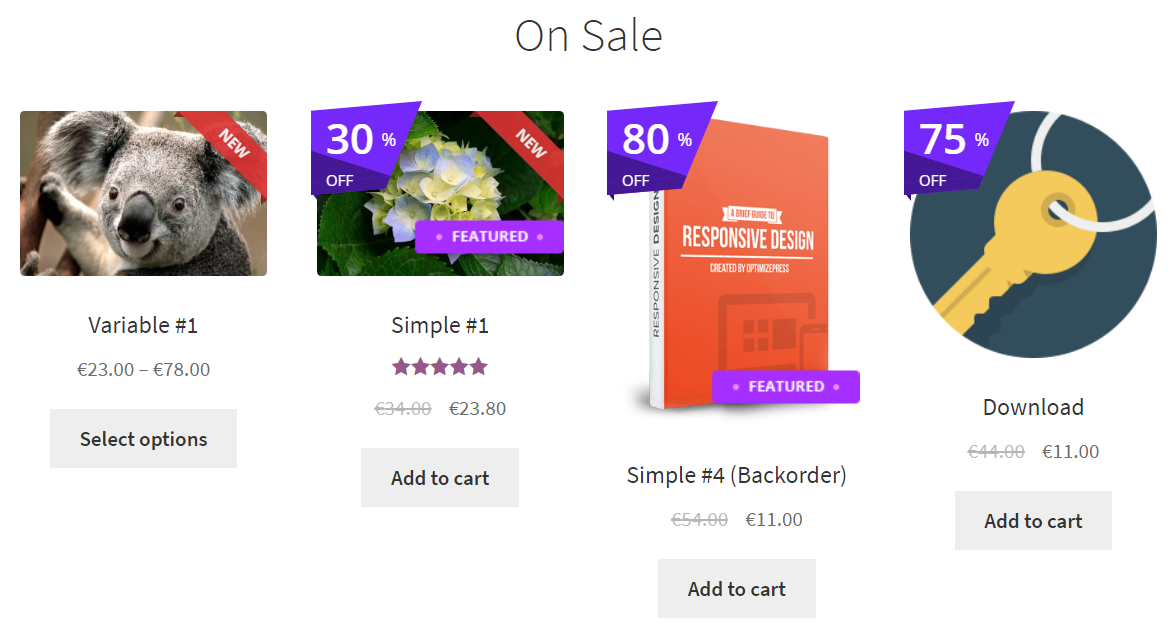
The WooCommerce shop page displays variable products with a “Select Options” button by default. However, if you’re looking to change it to something else (such as “View Product“) then I’ve got a useful snippet you can put to use.

Of course you can change the text to anything you like, by simply replacing the relevant string inside the snippet below. Enjoy!

Continue reading WooCommerce: Rename “Select Options” Button @ Shop Page

WooCommerce: Products With Equal Height @ Shop Page

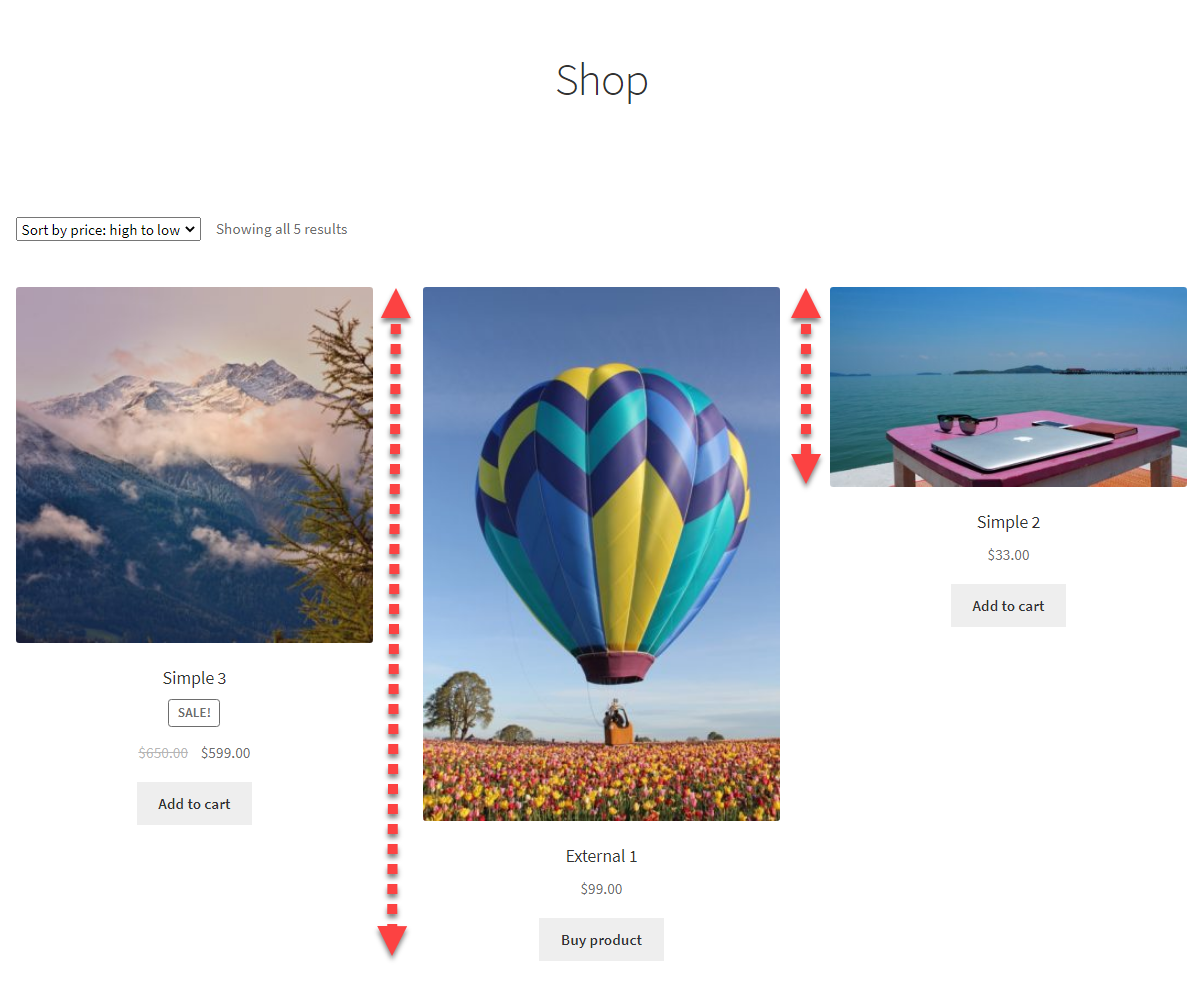
You know, that’s one of the biggest WooCommerce display issues.

Products may have images of different proportions, different title lengths, some have review stars and some don’t, making the “product grid” layout (product archive template) a big mess. You’d be very familiar with the below screenshot I guess.

So, here are a few options you have to make the display consistent. Enjoy!

Continue reading WooCommerce: Products With Equal Height @ Shop Page

WooCommerce: Hide Category Images @ Shop

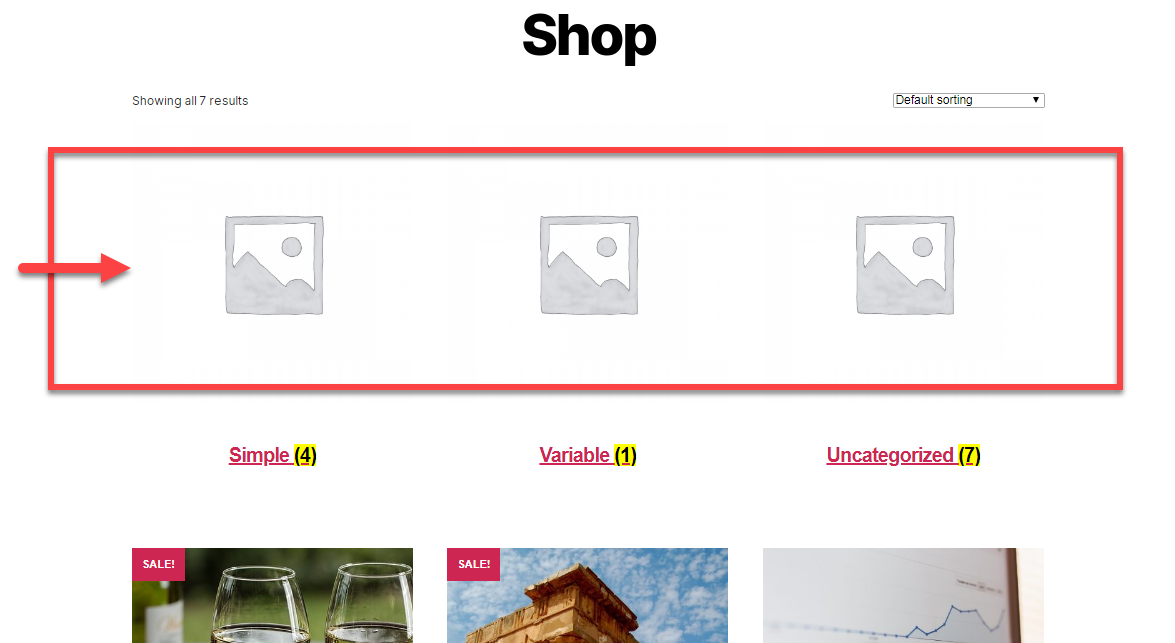
If your Appearance > Customize > WooCommerce > Product Catalog > Shop page display is set to “Show categories and products“, parent product categories will show in the “products loop” as the very first elements (see screenshot below). They really take up a lot of space and this could be annoying at times, mostly when you don’t use product category images.

Thankfully, if this makes sense to you and your customers, you can remove them easily (it’s one line of code). Also, this works really well when the number of parent product categories is proportional to the number of shop display columns (e.g. you have 6 parent categories and you have 3 products per row under Appearance > Customize > WooCommerce > Product Catalog > Shop page > “Products per row”). Enjoy!

Continue reading WooCommerce: Hide Category Images @ Shop

WooCommerce: One Product Per Row @ Shop Page

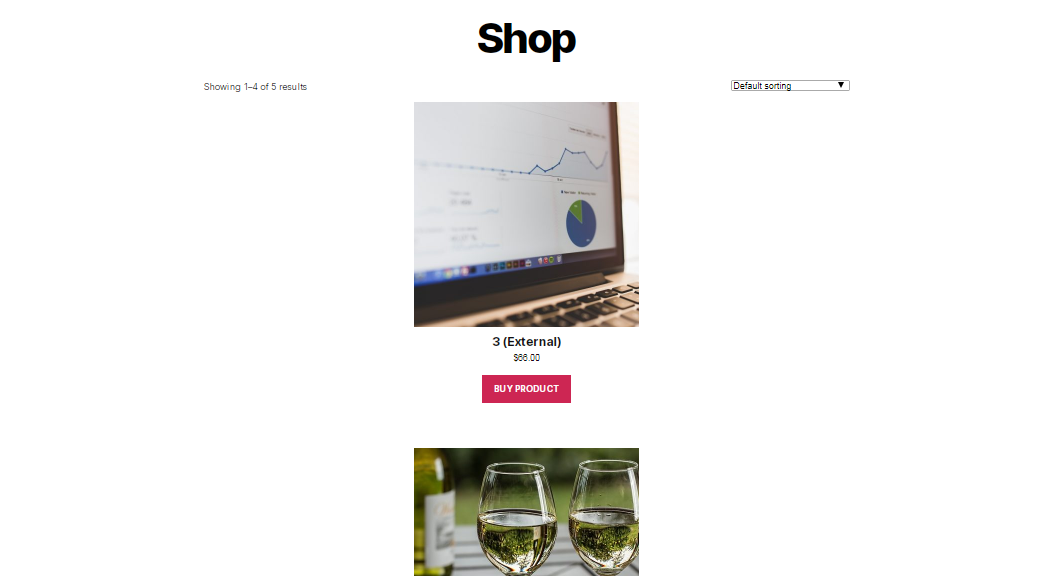
By default, WooCommerce displays 4 products per row in the shop page. This is ok for almost any ecommerce website, however in certain cases you might want to change this setting in order to show full-width products (a.k.a. one product per row).

In this post we’ll look at the alternatives you have in regard to changing this setting, and also some CSS adjustments to make the 1-product-per-row shop page look better. Enjoy!

Continue reading WooCommerce: One Product Per Row @ Shop Page

WooCommerce: Hide “Shop” Title @ WooCommerce Shop Page

There are plenty of WooCommerce snippets floating around the internet, but many of them are outdated, don’t work with the latest versions, or rely on messy CSS hacks. Titles are one of those elements that store owners often want to hide, especially when using page builders or when the design already includes a custom heading.

One of the most common requests is how to remove the default Shop page title, since it often doesn’t fit with the layout or might feel redundant. But the same question also comes up for Category and Tag archive pages, where the automatically generated titles can get in the way of a cleaner design.

In this post, I’ll share three simple snippets you can safely use: one to hide the Shop page title, one to hide Category and Tag titles, and one to remove all of them entirely if that’s what you prefer. Enjoy!

Continue reading WooCommerce: Hide “Shop” Title @ WooCommerce Shop Page

WooCommerce: Show Empty Product Categories

By default, empty WooCommerce product categories (i.e. categories which have no published products) will not display on your Shop page.

This makes a lot of sense and avoids that customers land on empty pages… BUT sometimes you might have different needs and require that users still see these categories when the shop display is set to “Show Categories”.

Thankfully there is a quick one-line fix that you can copy / paste in your functions.php to show empty categories… enjoy!

Continue reading WooCommerce: Show Empty Product Categories

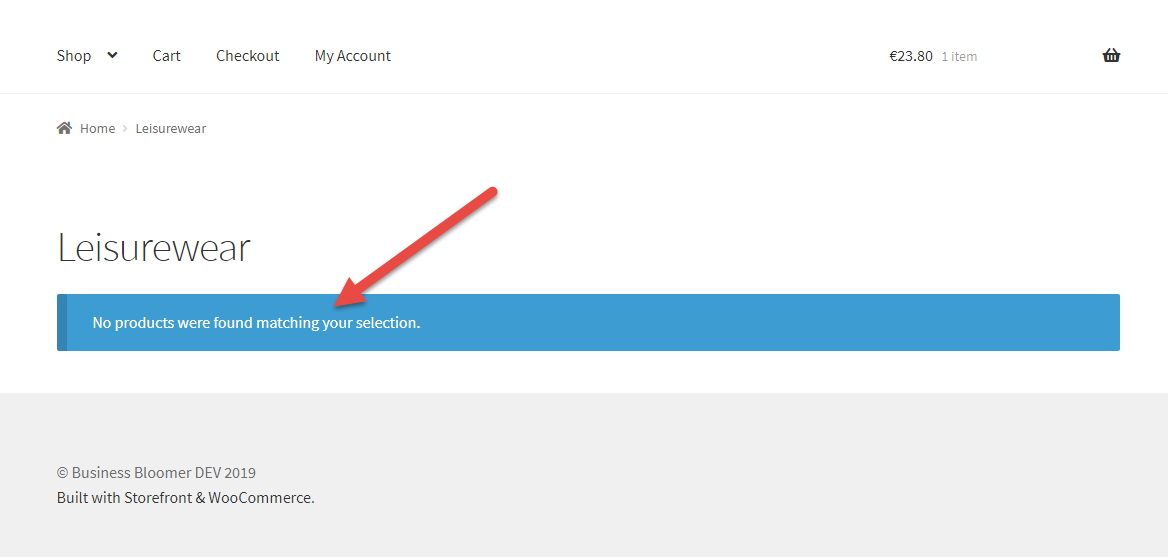
WooCommerce: Hide “No products were found matching your selection”

When your WooCommerce store has no published products the shop page will not display anything. A message “No products were found matching your selection” will show instead. The same applies to empty categories or when you decide to completely hide the shop page products for some reason, especially for custom built layouts.

So, how do we hide this notice? Thankfully, and once again, one line of PHP is sufficient to achieve the result! Enjoy 🙂

Continue reading WooCommerce: Hide “No products were found matching your selection”

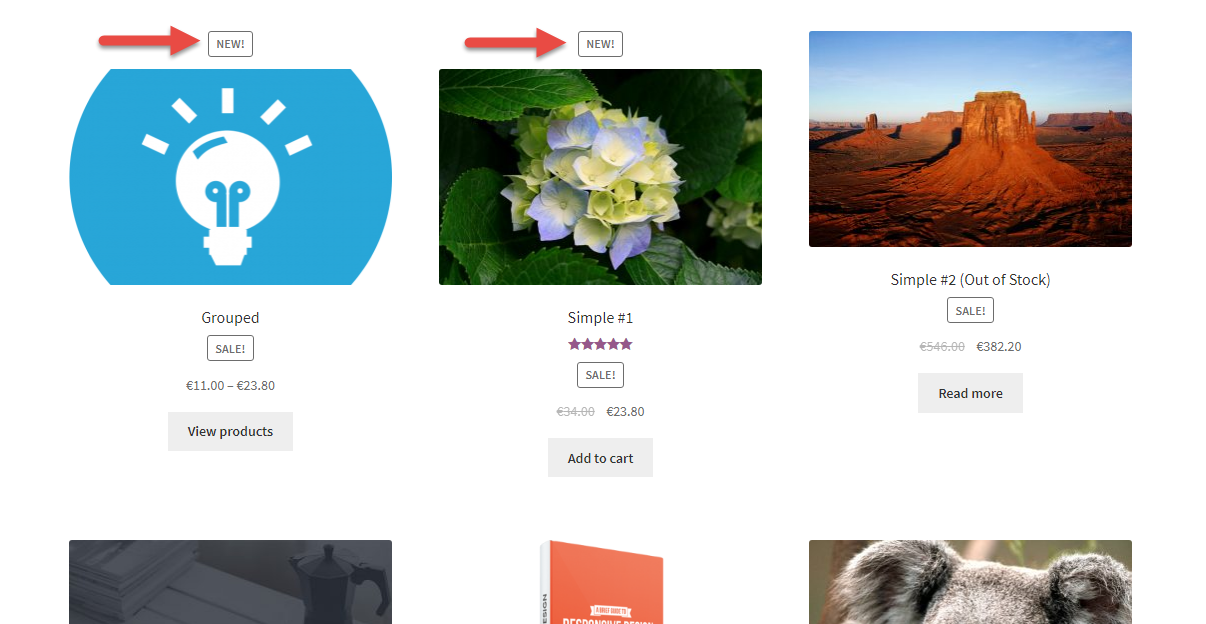
WooCommerce: Display “New!” Badge on Recent Products

We already have a nice “Sale!” badge by default with WooCommerce – this shows on the Shop page once certain conditions are met.

Now, what if we wanted to show a “New!” badge for products published in the last 30 days? This would certainly grab the customer attention, and also communicate the fact your shop is constantly updating with new products and content (well, good for Google too, right?).

Well, here’s a simple snippet for you; simply copy/paste into your functions.php and magically a “New!” badge will show (note: CSS is not provided, you’ll need to adjust it based on your current theme and custom styles).

Continue reading WooCommerce: Display “New!” Badge on Recent Products

WooCommerce: Change Product Permalinks @ Shop / Loop Pages

A BloomerArmada fan asked me a very interesting question: how can I link each product in the shop page to its own custom landing page as opposed to the default permalink?

Of course this applies when you don’t want to use the default single product page for all or some products. Clearly, you could set up a 301 redirect from the single product page to the landing page – that will help for SEO as well. But if this is temporary, or you need to still give access to the single product page later on, then a redirect is no good.

So, here’s how you can override the default permalink.

Continue reading WooCommerce: Change Product Permalinks @ Shop / Loop Pages

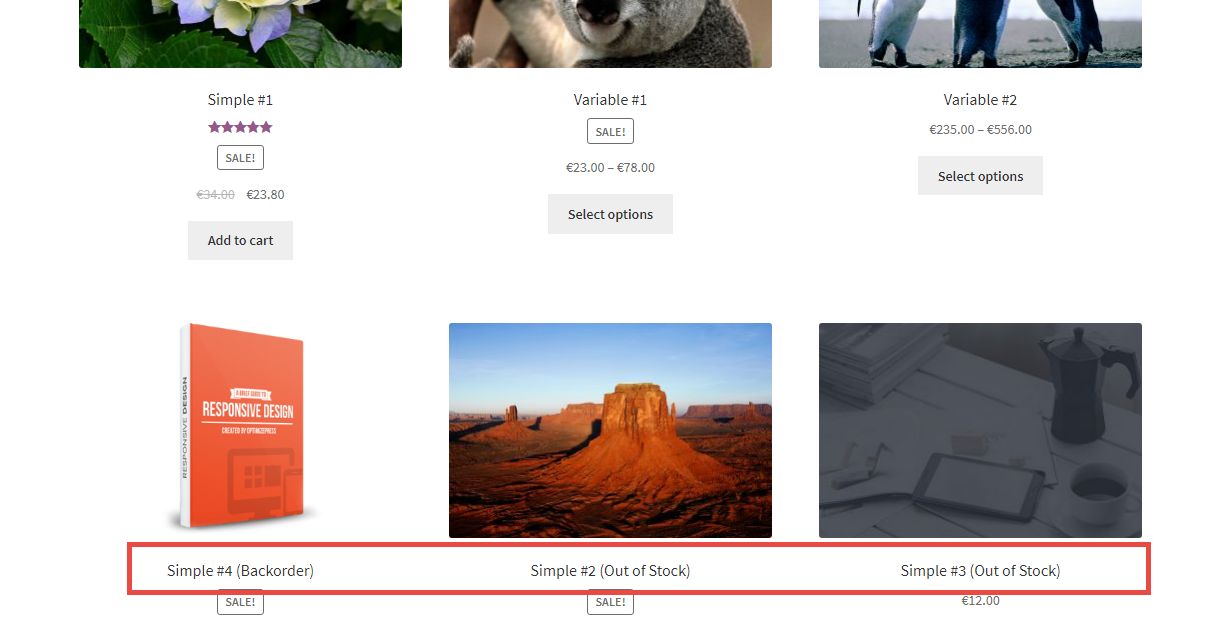
WooCommerce: Display “In Stock” Products First @ Shop

We’ve already seen how to add a custom “Product Sorting” option to the “Default Sorting” dropdown in the WooCommerce Shop page.

The task I was presented with, however, was to display items based on a custom “meta key”. Now, if you have no idea what a “meta key” is, don’t worry too much. For example, “_stock_status” is one of these keys, and therefore you can sort products by that key as opposed to product name, date, price, etc.

So, let’s see how to show all out of stock products as last in the shop, category and loop pages. As usual, simply copy/paste this little plugin in your functions.php and you’ll get the wanted result 🙂

Continue reading WooCommerce: Display “In Stock” Products First @ Shop

WooCommerce: How to Display Custom Product Badges (e.g. %OFF, NEW, FREE)?

You would know by now ecommerce customers buy products for different reasons. Your store products might be cheaper than your competitors, maybe you offer better shipping rates, possibly you restock products more quickly than anyone else – or simply you’ve got a great product people keep buying.

One way to display your product features and benefits on the Shop page is by using “product badges”, a series of display messages that are able to communicate with the user immediately.

You’re probably already familiar with the “SALE!” badge that WooCommerce gives us by default. What if you wanted to show the exact percentage amount of that offer?

You’re also aware of the “Featured” option for WooCommerce products. Yes, they show in the “Featured” product shortcode, but what if you wanted the shop to display these special products in a different way, i.e. by using a special badge?

Well, there are millions of examples on how you could improve your products page (and single product page) by making the most of product badges. Thankfully there are snippets and plugins that can help you with that.

A little investment might mean better click-through rates and therefore higher conversion rates!

Continue reading WooCommerce: How to Display Custom Product Badges (e.g. %OFF, NEW, FREE)?

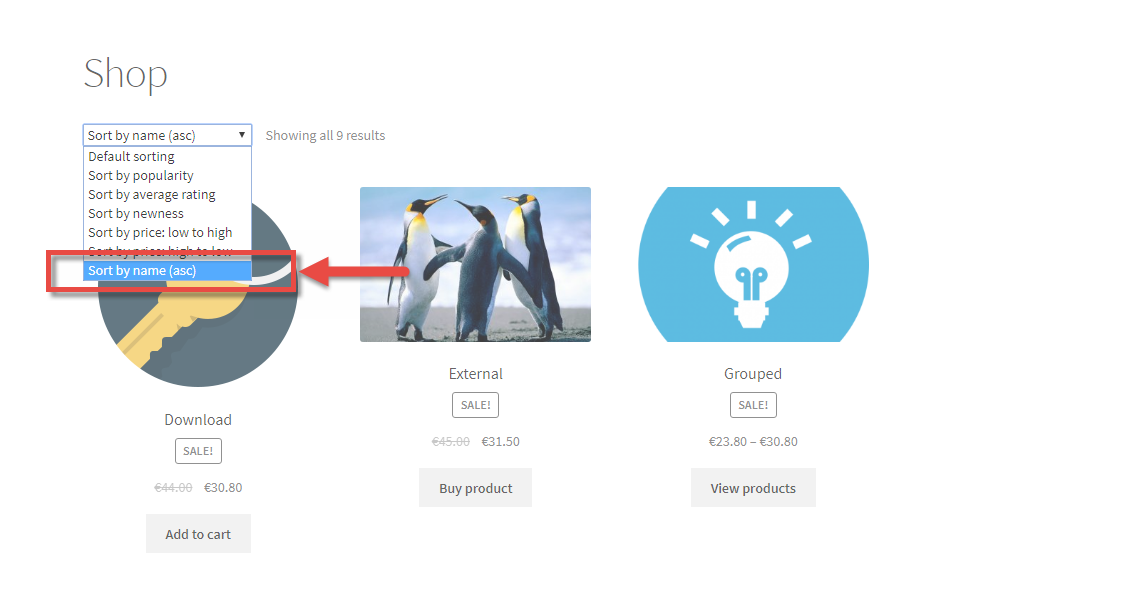
WooCommerce: Remove, Rename, Add “Sorting” Options @ Shop

We’ve seen in the past how to completely remove the “Default Sorting” dropdown that shows in the WooCommerce Shop, Category and Product Archive pages.

Sometimes, however, you might just need to remove one of the default options, rename a sorting option accordingly to your needs or even add a brand new sorting method. As usual, a few lines of PHP are sufficient to achieve anything, thanks to WooCommerce hooks and filters.

Continue reading WooCommerce: Remove, Rename, Add “Sorting” Options @ Shop

WooCommerce: Rename “Add to Cart” Button if Product Already @ Cart

When talking about UX, or for very specific WooCommerce shops, you might need to tell the user a product is already in the Cart before re-adding it or increasing its quantity from the Shop/Category/Loop and Single Product pages.

The “Add to Cart” button label comes with a filter (actually 2 filters, one for the Single Product page and another for the other pages such as Shop), so all we need to do is targeting those two hooks. We will “filter” the label text in case the product is already in the Cart, and return that back to WooCommerce. If this sounds like Japanese to you (hey, unless you’re from Japan!) don’t worry – simply copy/paste the snippet below as per below instructions.

Enjoy!

Continue reading WooCommerce: Rename “Add to Cart” Button if Product Already @ Cart

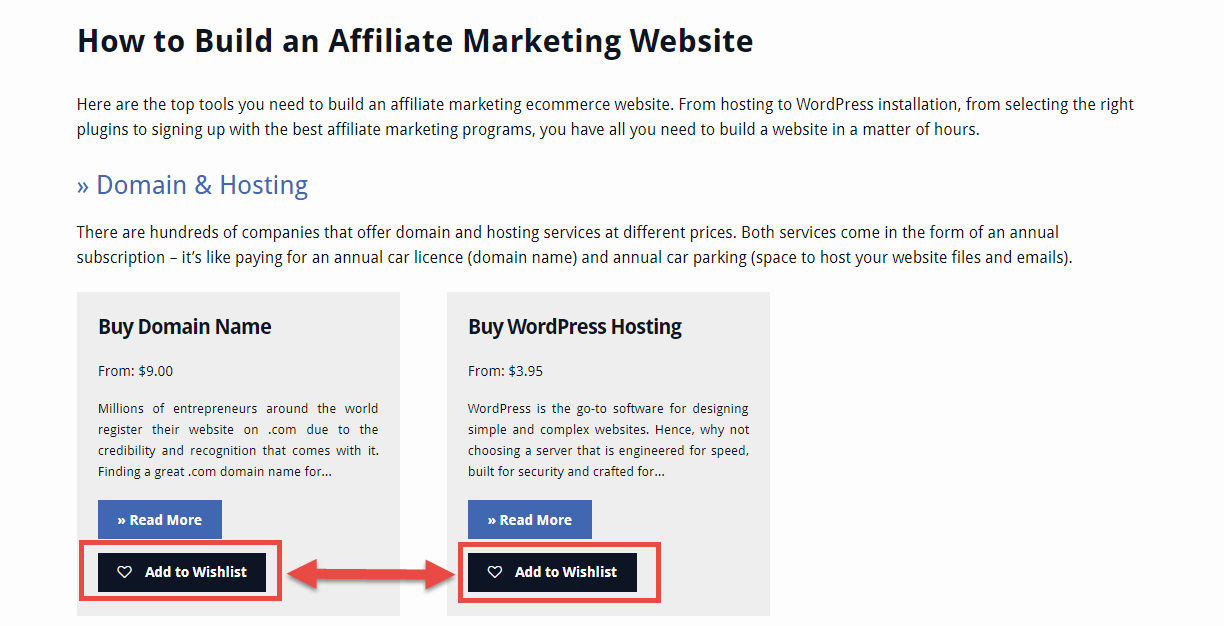
WooCommerce: Display YITH Wishlist Buttons @ Shop Page

This week’s snippet is about one of the most popular WooCommerce plugins on the WordPress repository: YITH WooCommerce Wishlist developed by YITHEMES.

With over 500,000+ active installations, you can probably understand why this is extremely on demand. Having a “wishlist” on your WooCommerce website is a great idea: customers can save their desired products and get back later to complete the purchase.

One of the most requested customizations of such plugin is to display the wishlist buttons on the shop (also called product archive or product loop) pages, under each product’s add to cart button. And the fix is extremely simple! Continue reading WooCommerce: Display YITH Wishlist Buttons @ Shop Page

WooCommerce: Add an Icon to the Add to Cart Buttons

Ecommerce is all about user experience, and making it easier for people to add to cart and checkout smoothly. Reducing the number of checkout fields is a great idea for example – as well as graphically communicating your number 1 objective: “please add to cart now!”.

So, how do you add an icon (or an HTML symbol) to the add to cart buttons in WooCommerce? This can be done in two ways – via CSS if you want to show Fontawesome Icons or via PHP if you prefer to use a simple HTML unicode symbol.

Let’s take a look at both methods!

Continue reading WooCommerce: Add an Icon to the Add to Cart Buttons