WooCommerce: Search Products By SKU (Frontend)

The frontend WooCommerce product search, for some reason, doesn’t work for SKU values. If it does, then your theme developers were smart enough to include this in their code, because this is a big problem especially for B2B stores.

Today, we’ll study how to alter the product search query, as well as the wc_get_product_id_by_sku() function, which is super helpful to determine the product ID for a given SKU. Enjoy!

Continue reading WooCommerce: Search Products By SKU (Frontend)

WooCommerce: Ajax Add to Cart Quantity @ Shop

As you know, you can tick the “Enable AJAX add to cart buttons on archives” checkbox in the WooCommerce settings in order to add products to cart from the Shop / Category / Tag / loop pages without refreshing the page.

This is great for certain businesses, especially those who sell in bulk and where customers know exactly what they need to buy without the need of checking the single product page.

The bad news is that the Ajax Add to Cart button only allows you to add 1 item to the cart i.e. there is no quantity input field. The other bad news is that the Ajax Add to Cart button only works for simple products, while for variable ones it will turn into a “Select options” link without the possibility of adding a variation to cart from there.

In this tutorial, we will see how to turn the WooCommerce shop into an… Ajax cart with quantity inputs. Enjoy!

Continue reading WooCommerce: Ajax Add to Cart Quantity @ Shop

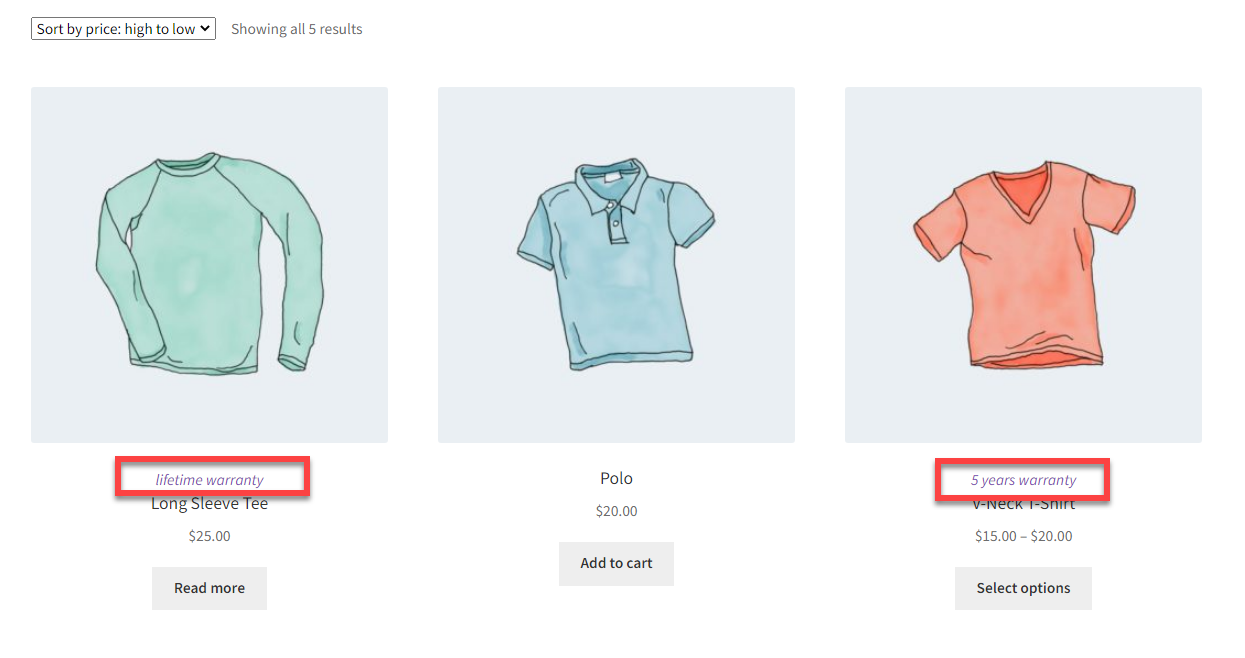
WooCommerce: Display Product ACF Value @ Shop Page

We already talked about displaying an ACF field on the single product page. This time around, we’ll do the exact same but for the product loop pages (shop, category, tag, etc.). ACF (Advanced Custom Fields) is an awesome plugin to create and manage custom fields, so this is definitely a tutorial that will help many WooCommerce developers.

Please note that if ACF is not active, the snippet will break the site. There is a way to make it trigger only when ACF plugin is active, just so you know. Anyway, let’s see how we can display the value of a product ACF inside the loop. Enjoy!

Continue reading WooCommerce: Display Product ACF Value @ Shop Page

WooCommerce: Switch Shop Columns Responsively

Ok, I may need an English language refresher… But the point I was trying to make was that yes, there is a way to switch the number of columns in the WooCommerce shop page, however that’s static.

What if I wanted to show 5 columns of products on large desktops, 4 columns on desktops, 3 on tablets and 2 on smaller devices? Well, this “dynamic” behavior is – this time around – managed by CSS. Let’s see how it’s done!

Continue reading WooCommerce: Switch Shop Columns Responsively

WooCommerce: Top Product Filter Plugins For Your Store

As your WooCommerce store grows – so do its product variants. On average, a WooCommerce store owns hundreds of inventory items and product variants for sale. 

While your goal might be to offer maximum product options to your visitors, with such a wide range of product variations – it can get challenging for your customers to find the exact product they’re looking for. 

This is where product filters come into play. Statista suggests that 61% of buyers consider the ease of finding products the most important aspect of an online shopping experience.  

No one has time to browse through the long product listings as it’s easier for customers to switch to another store that facilitates product discovery. Thus, product filter options enable your customers to browse through products of their preferences – positively impacting the user experience and increasing the chances of sales. 

This article shares the top product filter solutions for your WooCommerce store. But first, let’s learn more about their benefits and how this simple option can affect your store’s bottom line. 

Continue reading WooCommerce: Top Product Filter Plugins For Your Store

WooCommerce: Display Prices Inc + Ex Tax

The WooCommerce settings allow you to show prices including OR excluding tax. But what if we want to show both at the same time e.g. “$100 inc. tax – $89 ex. tax”?

Well, by combining the snippet below with the snippet I already coded for variable products price range, or by installing our Mini/Plugin, you can achieve exactly that.

Yes, in theory you could add a WooCommerce suffix via the settings, but unfortunately WooCommerce wraps such suffix in a “small” HTML tag and therefore the whole content is smaller in size, including the second price.

In this tutorial, we’ll see how to add a suffix via PHP instead, and specifically at how to add the price including tax if your store displays prices excluding tax. Enjoy!

Continue reading WooCommerce: Display Prices Inc + Ex Tax

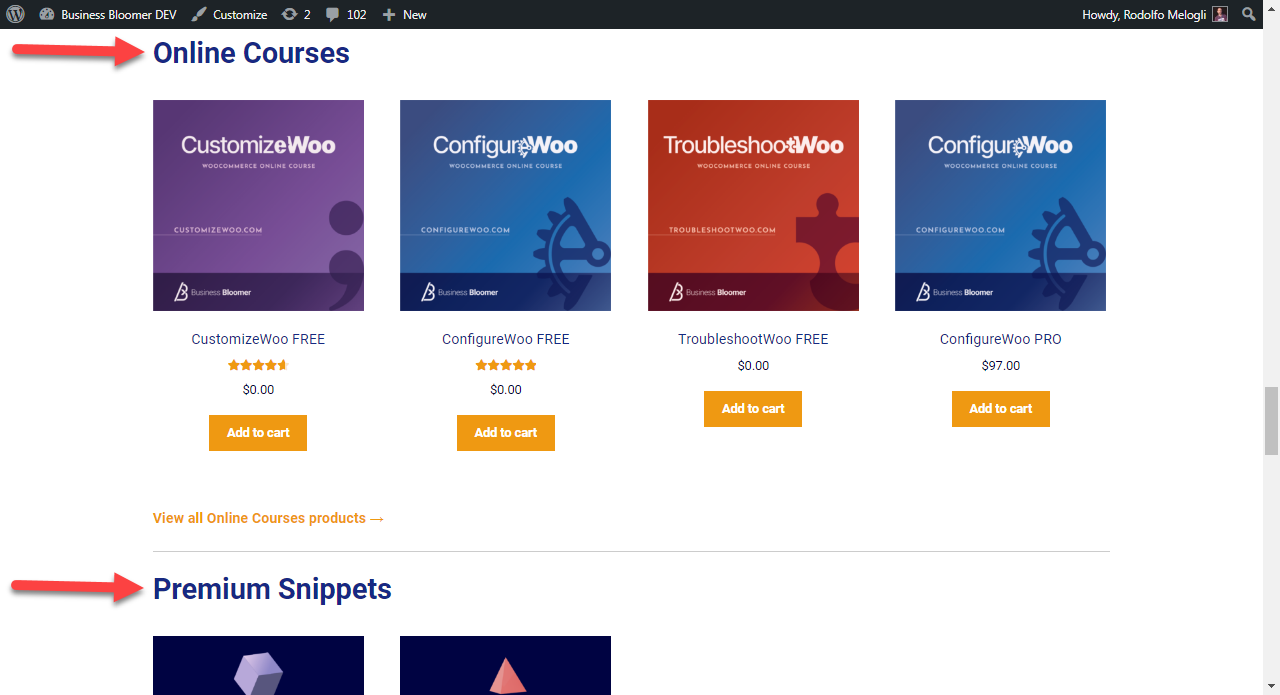
WooCommerce: Split Shop Page By Category

Well, this is gonna be a big one for you. When you start having lots of products and lots of product categories, the shop page becomes either messy or unrepresentative, because it may show just the latest 16 products on page 1 when you have dozens of categories and a much wider range of products…

As usual, there are plugins for that – first one that comes to mind is Nested Category Layout by Skyverge – but today I wanted to see how doable it was to code it, and how many lines of PHP were required.

So, if you wish to switch the WooCommerce shop page display from “products” to “a given number of products for each parent category”, here’s the fix. Enjoy!

Continue reading WooCommerce: Split Shop Page By Category

WooCommerce: How To Flip Product Images On Hover

Product images on your WooCommerce website play a significant role in increasing clicks and conversions. In fact, research suggests that 87.6% of customers consider the product image as the key component of their shopping experience.      

Naturally, any consumer who clicks on the product card first sees and goes through the product image. After that, they check for the size availability and read the product description, customer ratings, reviews, or technical specifications. 

While installing WooCommerce will help you with the basic setup of your eCommerce store – with minimal image settings and a simple product gallery, you’ll need to look for better ways to boost your product images. 

So, considering the effective role product images play in eCommerce sales, the question is – how can you maximize their potential and deliver an excellent customer experience? 

One way to do this is through the WooCommerce image swap / flip plugins. These plugins let you add a hover effect on your product images to flip or change them. By doing this, you’ll be able to display additional variations of your products, allow customers to preview products right from the category page and keep customers in your store longer by offering them an enjoyable browsing experience.

The product image swap/flip plugins for WooCommerce help stores in several other ways. But first, let’s understand their importance and get a clear picture of their functionality. 

Continue reading WooCommerce: How To Flip Product Images On Hover

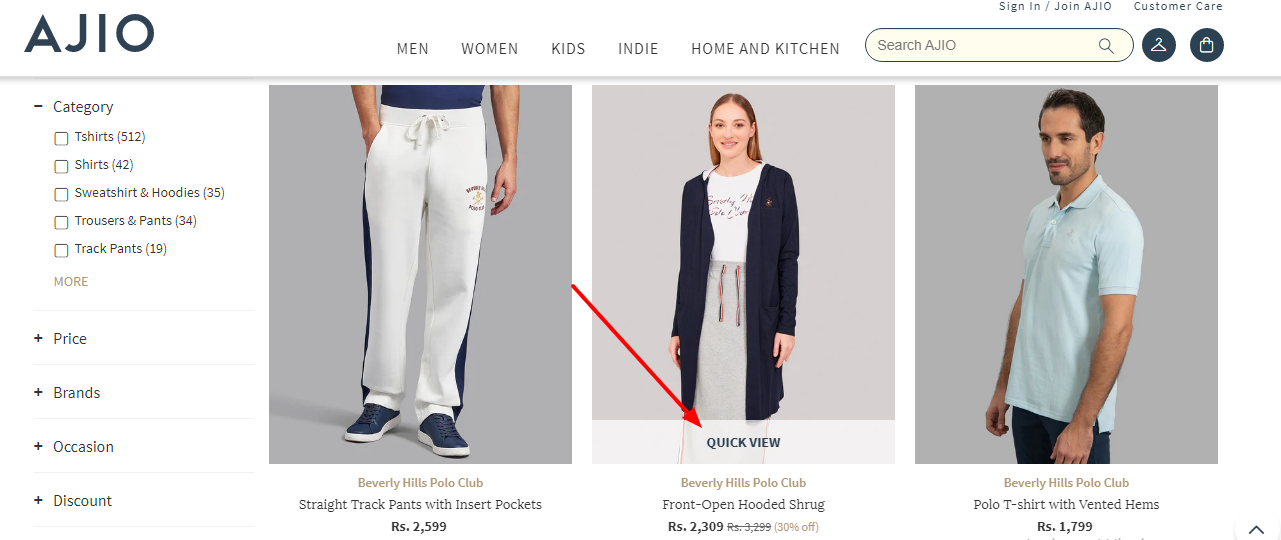
WooCommerce: Top Quick View Plugins

Imagine if your customers didn’t have to visit a separate product page every time they wanted to check out a product. They could see product details right from the page they’re on and avoid going back and forth between the store and product pages

Sounds convenient, right?

This is exactly what a quick view feature on your WooCommerce store can do. 

It allows shoppers to view product images, features, and prices from the shop page through a popup window. This way, they can see if they like the product and add it to their cart or simply close the popup and continue browsing items. 

That’s not it. By making product surfing and shopping fast and hassle-free, the quick view feature can also help you improve customer experience and increase your store sales and revenue. 

Although a pretty useful feature, WooCommerce doesn’t have any default settings to enable a quick view button in your store. 

The good news is that there are some great quick view plugins you can use to add this functionality to your shop and optimize it for sales. 

We’ve done the legwork and compiled a list of seven of the best WooCommerce quick view plugins you can use for your online store. Let’s dive in!

Continue reading WooCommerce: Top Quick View Plugins

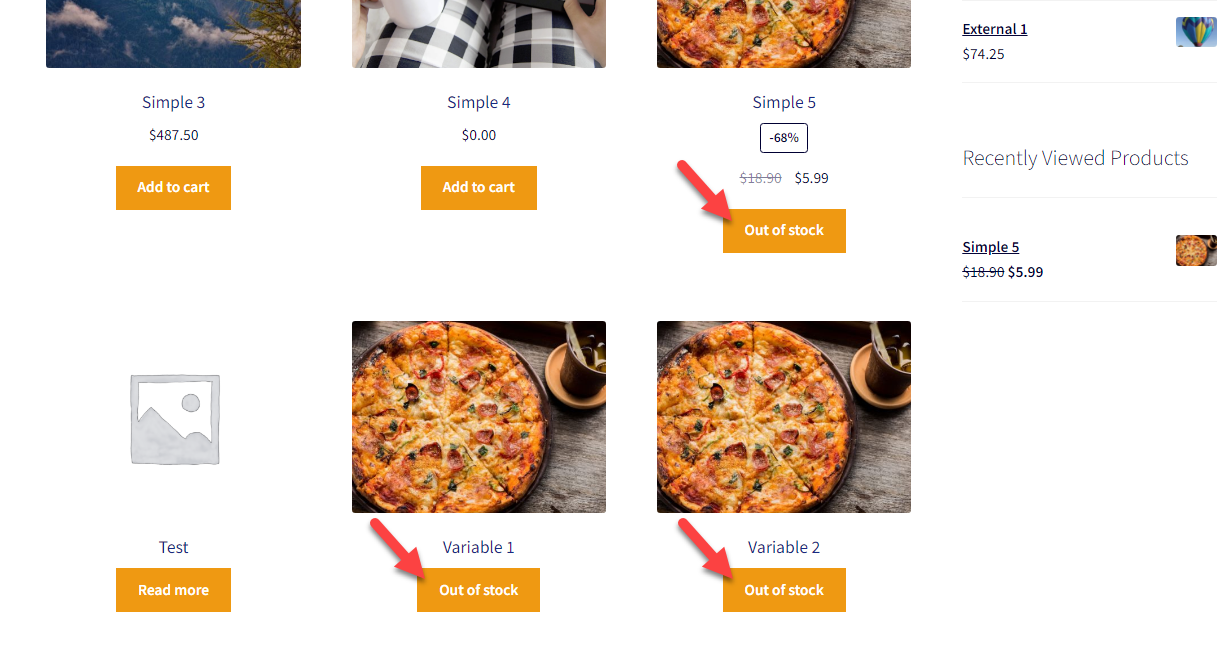
WooCommerce: Rename “Read more” To “Out of stock” @ Shop

There is an unfortunate (IMO) add to cart button naming on the WooCommerce shop page / category pages / product loops. When an item is out of stock, the “Add to cart” (or “Select options” for a variable product type) button label will turn into “Read more”.

To be honest, that doesn’t really say much to the end customer. It’s quite confusing and doesn’t make much sense.

Today, we’ll see how to change that “Read more” label into something more comprehensible: “Out of stock”. A super easy trick. Enjoy!

Continue reading WooCommerce: Rename “Read more” To “Out of stock” @ Shop

WooCommerce: Product Category Price Range

WooCommerce variable products display a price range by default, which goes something like this: $MIN-$MAX. Now, wouldn’t it be nice, on the Shop page or Category Widget, to show the price range for each category?

Well, as usual this is a customization that can apply to certain online businesses only, so hopefully you’re one of them. Either way, this is yet another chance for you to learn PHP applied to WooCommerce. Enjoy!

Continue reading WooCommerce: Product Category Price Range

WooCommerce: Check If Product Belongs to Category / Tag

We’ve studied “conditional logic” extensively over the previous Business Bloomer posts. In today’s spin-off, I want to clarify how you can check if a given product belongs to a category, tag or custom taxonomy because this is one of the most used conditional logic scenarios.

It’s important to know that a product can be inside the “loop” (e.g. the shop page or a list of products), alternatively you may be on the single product page or have the product unique ID, or even you can check if a product category is inside the Cart. Finally, you can even run the product category check within an Order or an Order Email.

Either way, the function is always the same. You simply need to understand how to use it. Enjoy!

Continue reading WooCommerce: Check If Product Belongs to Category / Tag

WooCommerce: Hide Add to Cart If Already Purchased

We already saw how to hide add to cart for logged out users and how to find out if a user has already bought a given product – so I said why not combine the two snippets and figure out how to hide the add to cart button if a logged in customer has already purchased a product?

After that, however, I realized that the “woocommerce_is_purchasable” filter offered by the WooCommerce plugin makes the task much easier than just combining the two mini-plugins above.

So, here’s how it’s done – enjoy!

Continue reading WooCommerce: Hide Add to Cart If Already Purchased