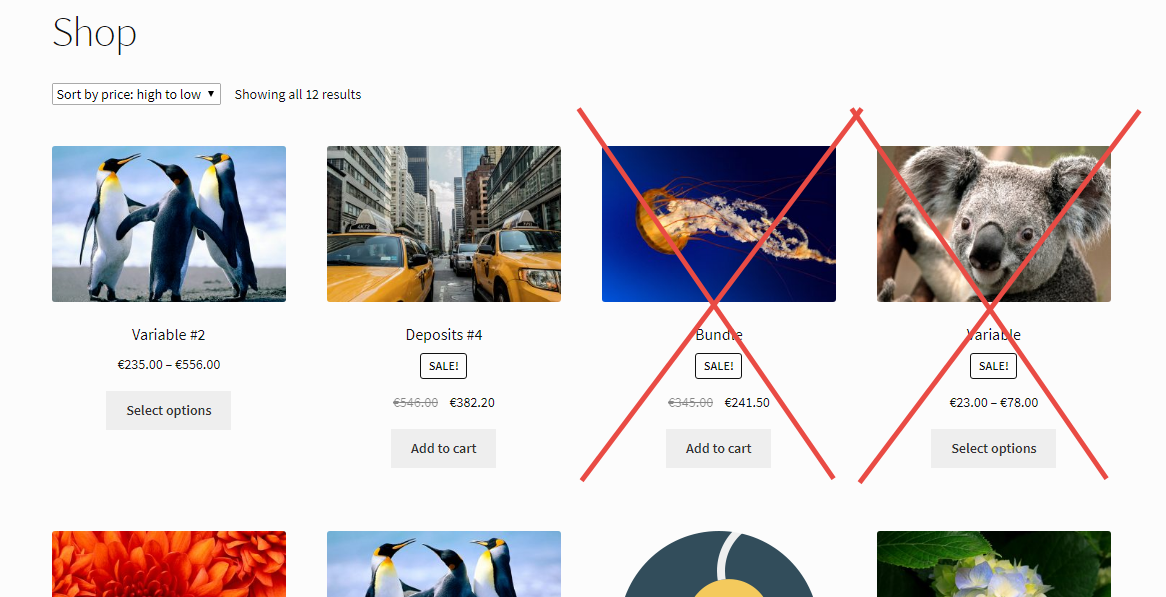
A very handy snippet. Sometimes, you only want to show certain categories on the shop page, and have those products ONLY show under the category archive instead.
Continue reading WooCommerce: Hide Products From Specific Category @ Shop
A very handy snippet. Sometimes, you only want to show certain categories on the shop page, and have those products ONLY show under the category archive instead.
Continue reading WooCommerce: Hide Products From Specific Category @ Shop
By default, WooCommerce sets the Shop page as a dynamic archive, which can sometimes confuse store owners trying to customize its SEO appearance.
You might notice the meta title shows up as “Products Archive” in search engine previews or browser tabs—hardly ideal for branding or SEO.
The good news? If you’re using Yoast SEO, you don’t need to write custom code or mess with templates. WooCommerce assigns the Shop page to a regular WordPress page behind the scenes, and Yoast can detect this. That means you can simply edit the Shop page from the Pages menu in your WordPress dashboard, scroll down to the Yoast SEO section, and customize the meta title and description just like you would with any other page.
This gives you full control over how the Shop page appears in search results—no snippet or plugin required.
Continue reading WooCommerce: How to Change Shop Page SEO Meta Title
A very common WooCommerce shop page issue: sometimes (and especially with affiliate stores), WooCommerce product titles are way too long and go over several lines, messing with the overall vertical alignment.
On top of this, you may also want to keep the shop experience consistent, and make all the WooCommerce product titles of the same length. This is how you do it. Enjoy!
Continue reading WooCommerce: How to Shorten Product Titles
Interesting WooCommerce customization here. A client of mine asked me to hide/remove prices from the shop page and category pages as she wanted to drive more customers to the single product pages (i.e. increasing the click-through rate).
As usual, a simple PHP snippet does the trick. I never recommend to use CSS to “hide” prices, as they would still be visible in the code – PHP stops the prices from loading, so they’re invisible to the user.
Continue reading WooCommerce: Hide Prices on the Shop & Category Pages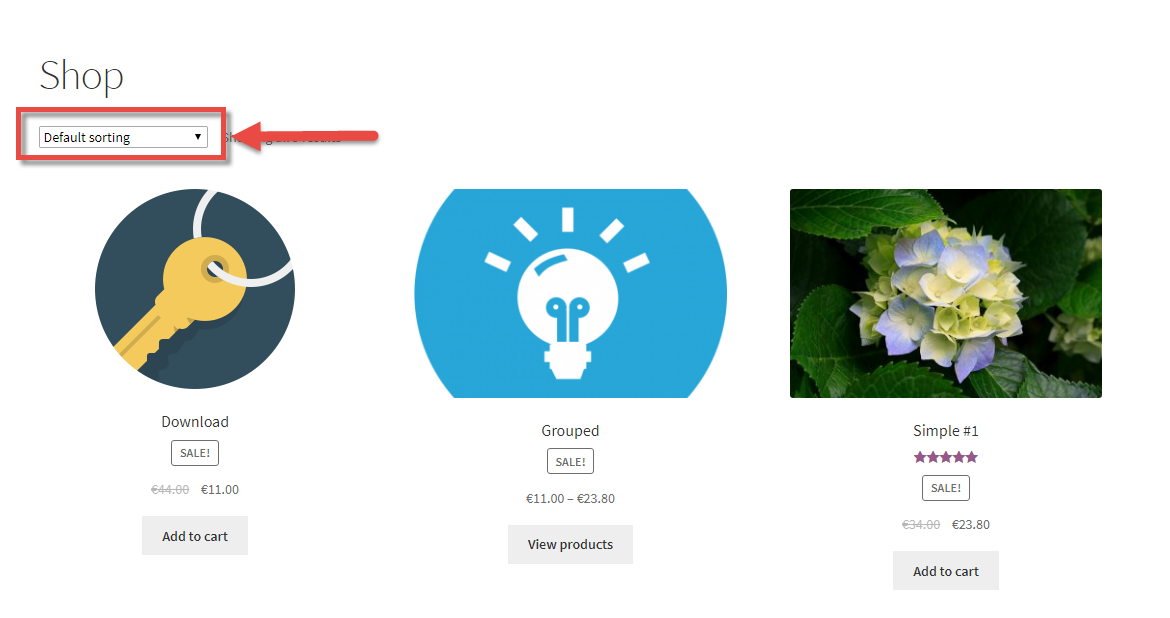
If the WooCommerce product sorting functionality (“Default Sorting” dropdown) is a waste of space or you don’t need that select box at all, you may want to remove it.
No matter if you prefer custom code or a simple plugin – hiding the product sorting dropdown is a piece of cake. Enjoy!
Continue reading WooCommerce: How to Remove the “Default Sorting” Dropdown
This is quite an annoying thing in WooCommerce when you have just a few products.
Besides, if you only have 1 product in a given category, the notice “Showing the Single Result” will appear on top of the category page.
So, how do we remove the whole “Showing 1–15 of 178 results” element from the Shop, Category, Tag and product loop? Here’s the fix. enjoy!
Continue reading WooCommerce: Hide “Showing x-y of z results” @ Shop Page
Here’s how to remove those annoying “yellow” product category counters in the WooCommerce shop / category / loop pages. You will find several versions of this snippet all over the internet…. but in case you haven’t found it yet, here’s the simple one-liner PHP code you need to add to your functions.php file.
Continue reading WooCommerce: Remove Product Category Counters
A client asked me to add a “Free Shipping” notice under each WooCommerce product on the Shop Page. This can increase your click-through rate and hence your sales conversion rate. Here are a couple of PHP and CSS snippets so that you can implement this helpful edit. Continue reading WooCommerce: Add Text Under Each Product @ Shop Page

You may want to force users to login in order to see prices and add products to cart. That means you must hide add to cart buttons and prices on the Shop and Single Product pages when a user is logged out.
All you need is to paste the following code in your functions.php or in a Code Snippet.
Please note: your theme may have overwritten some of the default WooCommerce functions, hence the code may not work. See the mini-plugin solution below if you want to make it happen and also have the chance to customize the call to action.
Enjoy!
Continue reading WooCommerce: Hide Price & Add to Cart for Logged Out Users
You may want to disable the WooCommerce variable product price range which usually looks like $100-$999 when variations have different prices (min $100 and max $999 in this case).
With this snippet you will be able to hide the highest price, and add a “From: ” prefix in front of the minimum price. At the same time, variable products with a single price (i.e. all variations have the same price) will keep their original format, so won’t display the “From: ” prefix.
Simply paste the following code in your child theme’s functions.php and enjoy!
Continue reading WooCommerce: Disable Variable Product Price Range $$$-$$$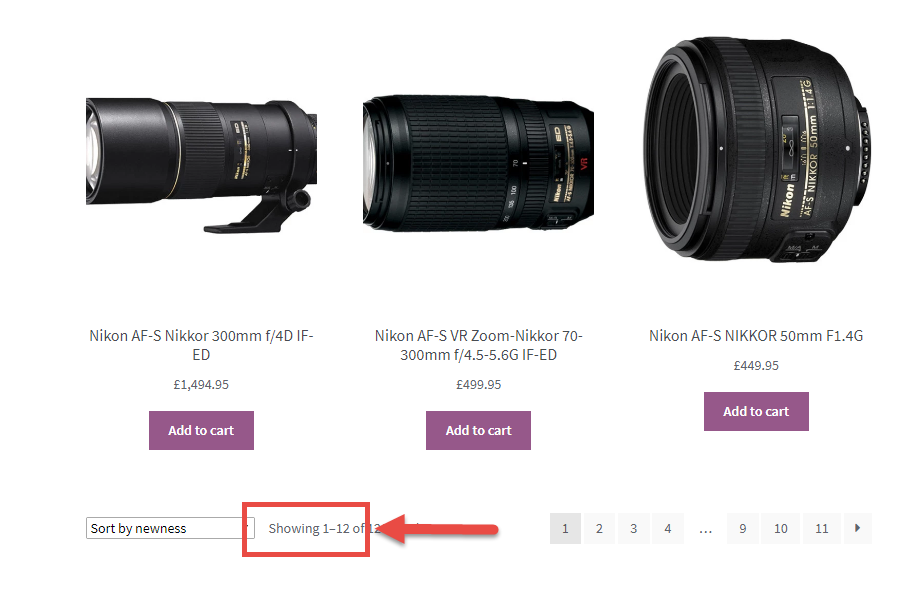
If you’re not happy with the default number of products per page (16), or if your theme overrides the default WooCommerce setting for “per_page” products and you need to change it, here’s the fix for you.
Please note that you may also need to set the number of WooCommerce product grid columns, so that you can make sure the total number of products per page is a multiple of that and you don’t leave the shop page with empty grid items.
Enjoy!
Continue reading WooCommerce: Change Number of Products Per Page