WooCommerce: Bulk Delete Pending / Failed Scheduled Actions

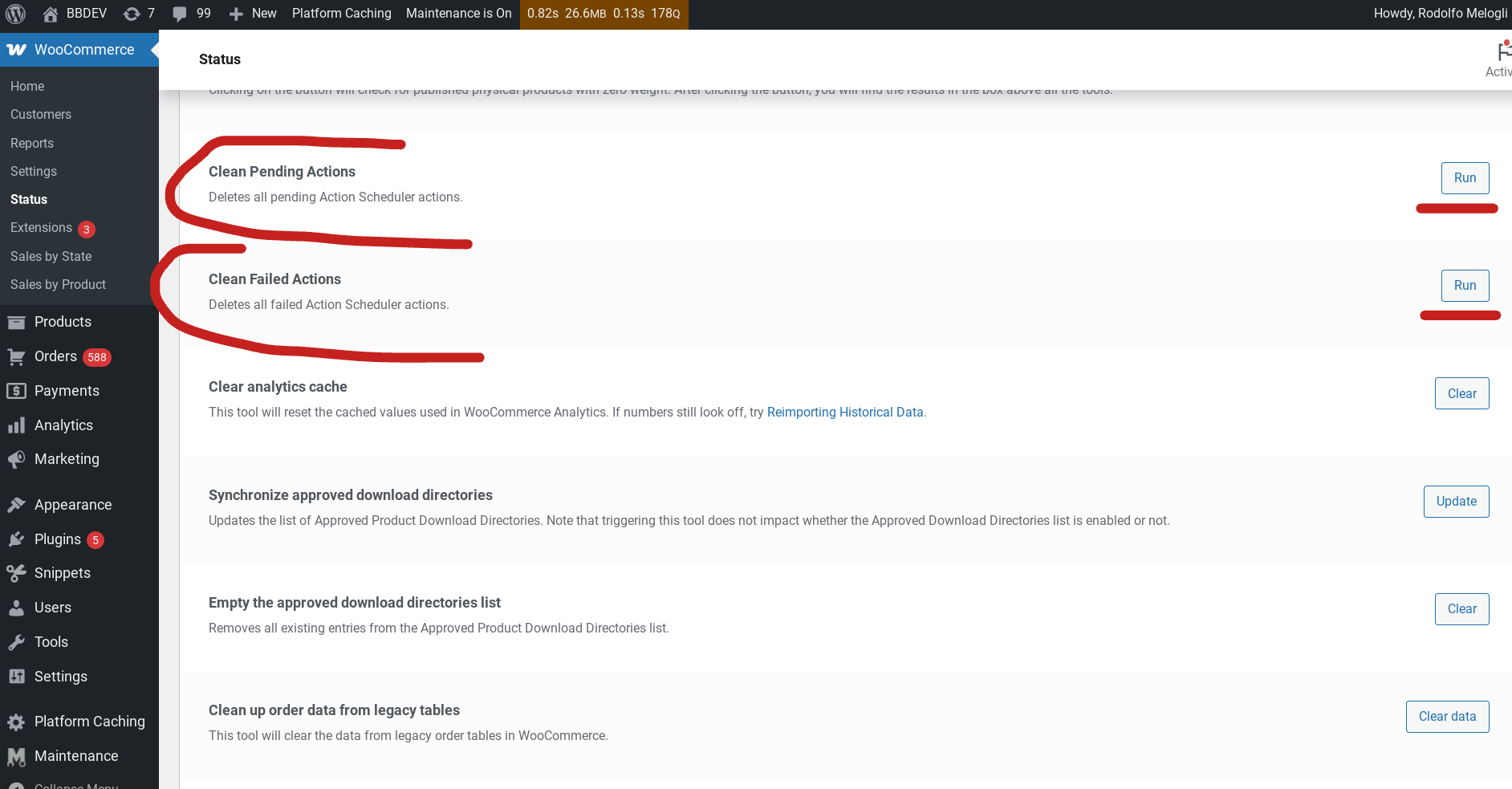
In a recent project, I needed a quick way to bulk delete pending and failed Action Scheduler jobs directly from the WordPress dashboard—so I built a custom tool for it.

The WooCommerce > Status > Tools section is packed with useful features for debugging and maintenance, but did you know you can add your own custom tools there?

This is especially useful when your site has thousands of queued actions that are no longer needed, or if a plugin malfunction leaves behind a large number of stuck jobs. Instead of running manual SQL queries or using WP CLI, this approach gives you a simple one-click button inside your WooCommerce admin.

In this tutorial, I’ll show you how to register your own custom tool using WooCommerce’s built-in API, and how to trigger and delete all pending or failed actions.

Here’s the full snippet to get you started!

Continue reading WooCommerce: Bulk Delete Pending / Failed Scheduled Actions
WooCommerce: How to Create Custom Logs

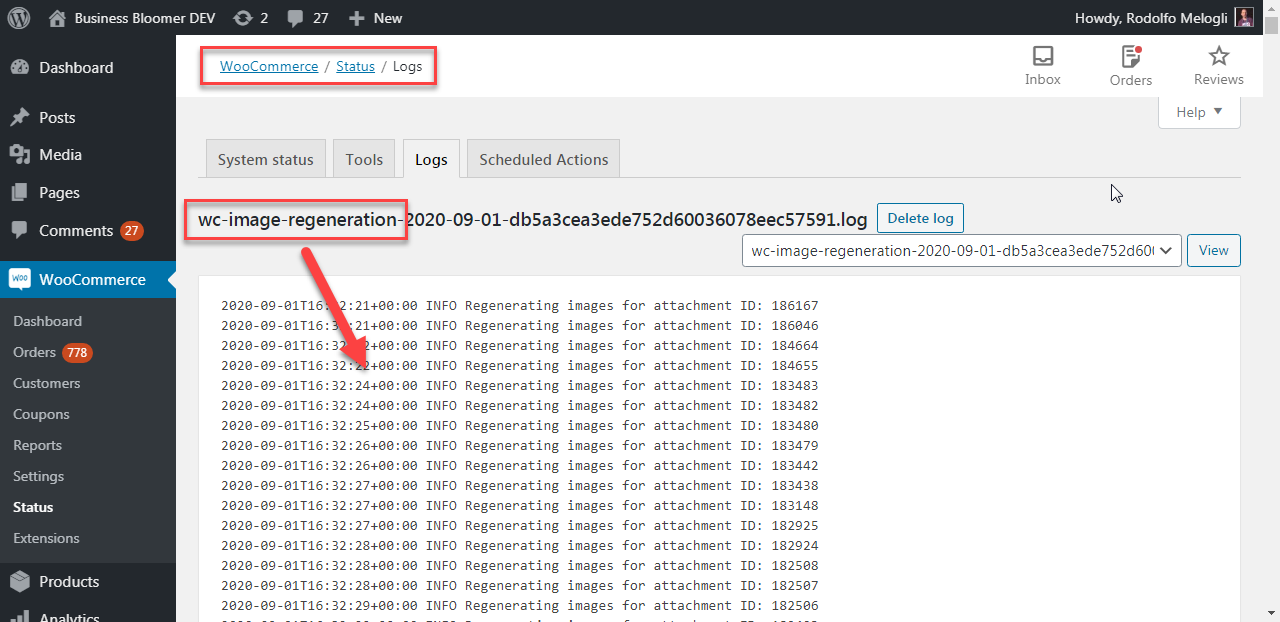
Logs or log files are a must for WooCommerce developers and store managers. Log files are basically an automatically generated collection of events that happen on a given store, based on certain logging criteria. For example, WooCommerce already creates a “fatal error” log for you, that you can easily access and read within the WordPress dashboard (WooCommerce > Status > Logs).

If you’re familiar with WordPress troubleshooting, you will know how important the debug.log file is while trying to identify website weaknesses, PHP errors or white screen of death. Well, today I’m going to teach you how to create your own log, so that you can record whatever event happens on your WooCommerce website and easily check the logs for troubleshooting purposes.

Specifically, I’ll show you how to create a log every time there is a customer failed order and every time there is a product price change made by the admin. Easy peasy – enjoy!

Continue reading WooCommerce: How to Create Custom Logs

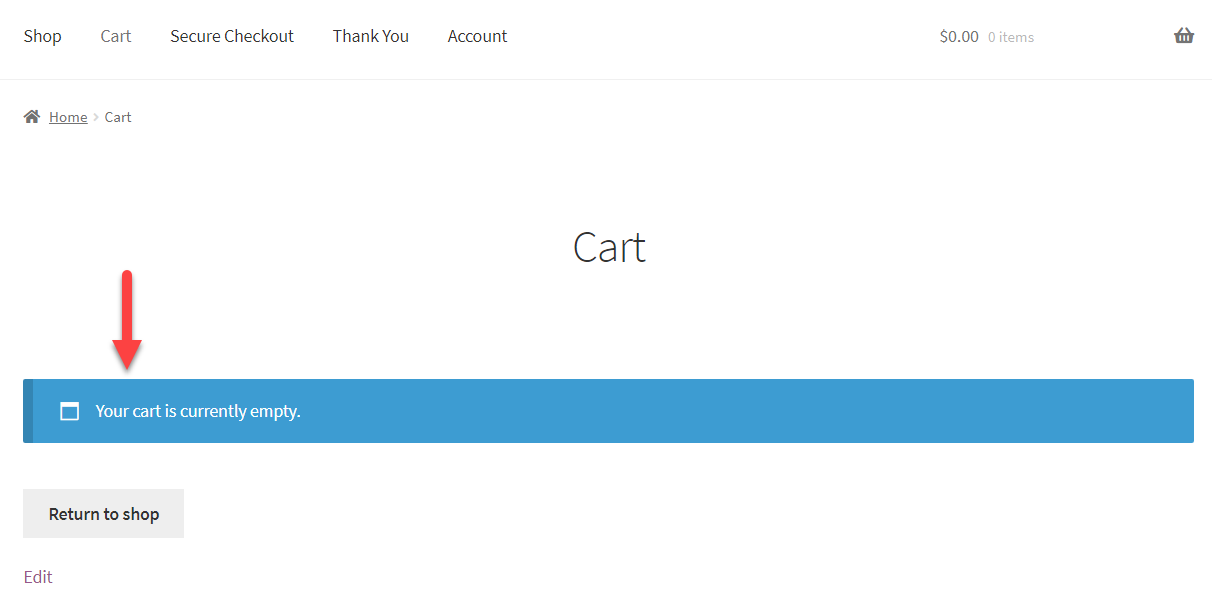
WooCommerce: How to Fix the “Cart is Empty” Issue

For some reason, sometimes you add products to cart but the cart page stays empty (even if you can clearly see the cart widget has products in it for example).

But don’t worry – it may just be a simple cache issue (and if you don’t know what cache is that’s no problem either) or a theme / plugin “conflict”.

The WooCommerce Cart page is extremely delicate; it displays dynamic content based on cookies and PHP sessions, is coded with PHP but also JS and Ajax, requires to be excluded from cache and is subject to problems in case of out of date software.

So, here’s your “Empty Cart” troubleshooting checklist you can follow without any technical knowledge.

I also recommend you read through the (many) comments, because many developers shared what worked for them too. Good luck!

Continue reading WooCommerce: How to Fix the “Cart is Empty” Issue

WooCommerce: Hide Shipping Rates if Free Shipping Available

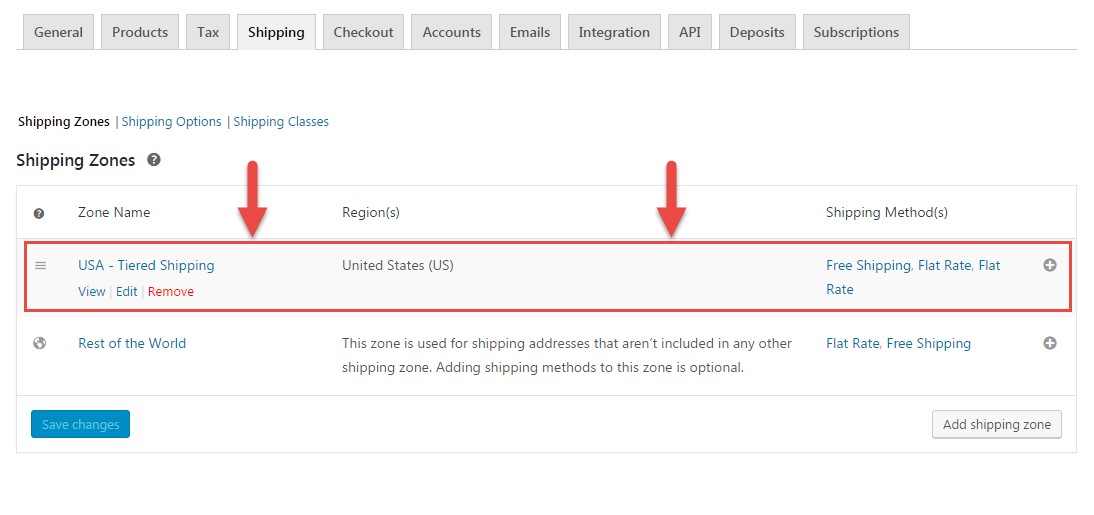
If Free Shipping is available, you possibly don’t want to show the other premium shipping options. WooCommerce shows by default all shipping rates that match a given shipping zone, so it’s not possible to achieve this from the settings alone.

Thankfully, the “woocommerce_package_rates” filter allows us to manipulate the shipping rates before they are returned to the frontend. In this example, we will disable all shipping methods but “Free Shipping” so that free shipping remains the only possible choice.

Here’s the code to add to your functions.php. Enjoy!

Continue reading WooCommerce: Hide Shipping Rates if Free Shipping Available